# Seeing YazSes work — tray icon & overlay
YazSes is hold-to-talk and mostly invisible, so it gives you **two at-a-glance visual signals** that tell you exactly what it's doing without switching windows:
1. A top-bar **tray icon** — a small **“Y” badge** whose **colour is a live state indicator**.
2. An optional **voice-activity overlay** — **sonar rings near your cursor** that pulse while YazSes is recording your voice.
---
## The tray icon “Y” — a 5-colour state indicator
The badge sits in your top bar (GNOME shown here) and changes colour as YazSes moves through its states. Click it for a menu to pick/pin your mic, re-calibrate, and restart/stop the daemon.
| Colour | State | What it means |
|:------:|-------|---------------|
| 🔵 **Blue** | Normal / idle | Daemon is up and ready. Nothing is being recorded. |
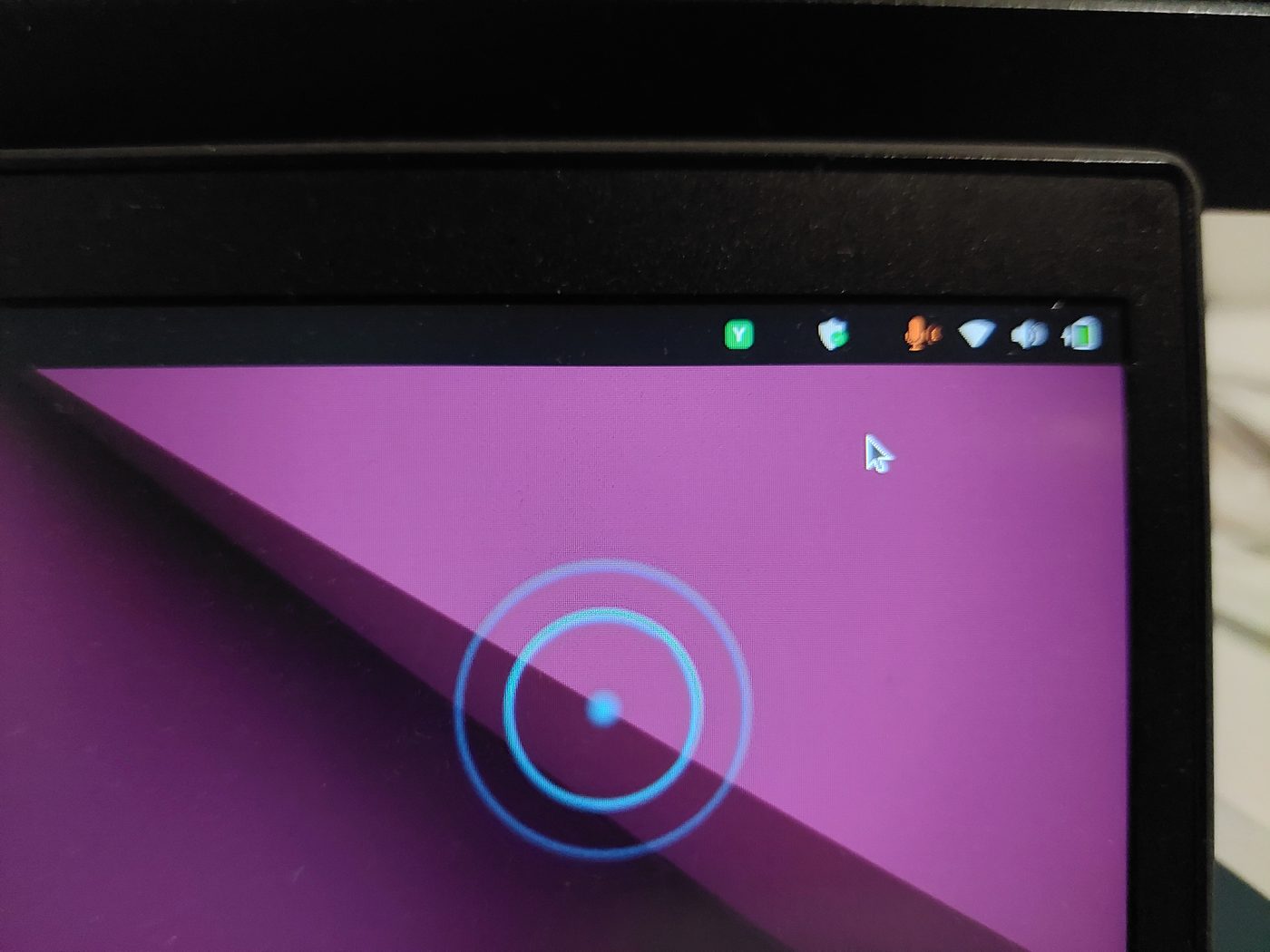
| 🟢 **Green** | Dictating into text | You're holding the hotkey and speaking; the words will be **typed into the focused text field**. |
| 🟡 **Yellow** | No text target | You're dictating but **nothing editable is focused** — the words are **saved to the clipboard** instead of being typed into the wrong place. |
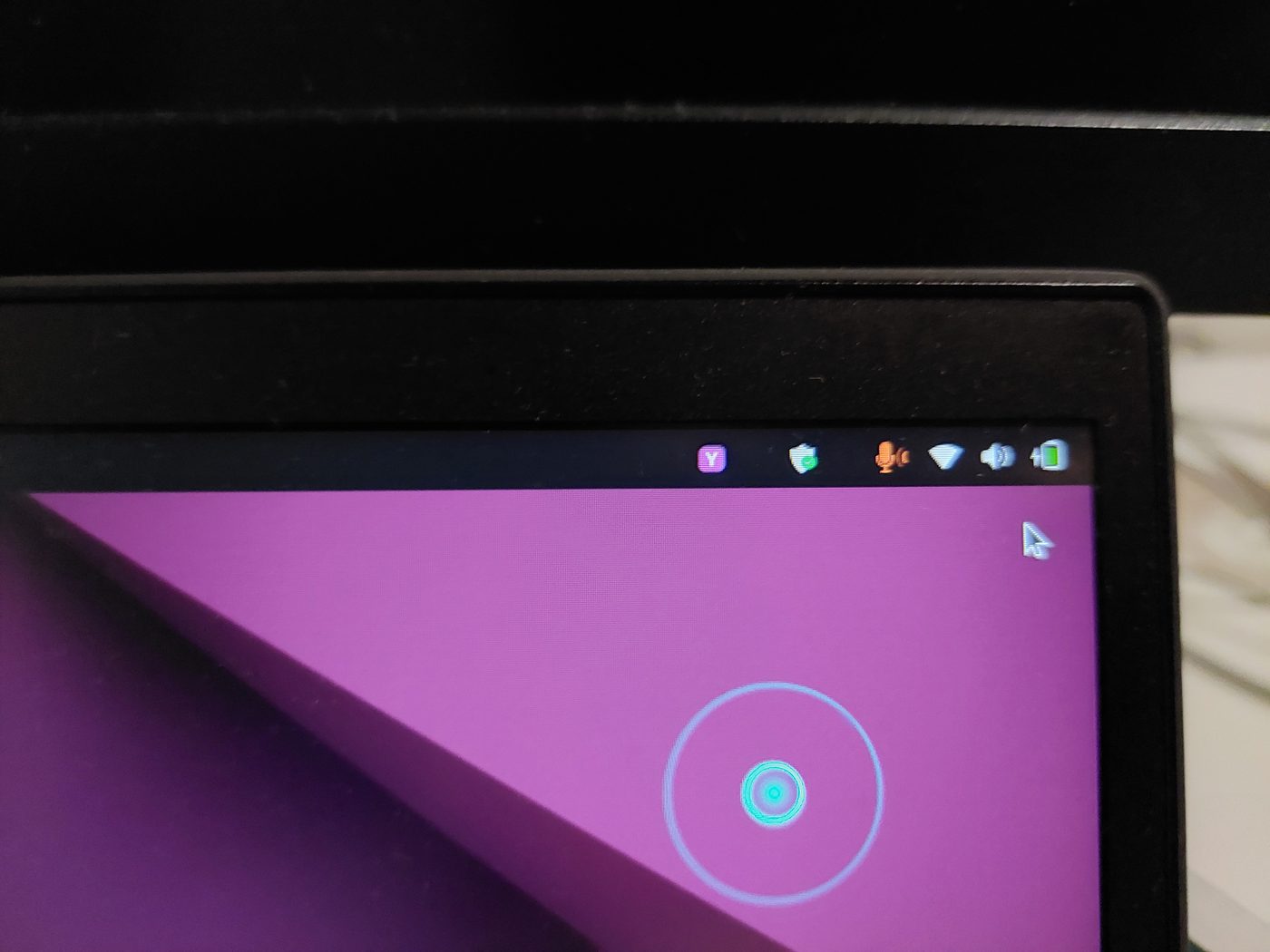
| 🟣 **Purple** | Command mode | You're holding the **command key**, so speech is parsed as a **voice command** (e.g. *“undo that”*) rather than typed. |
| 🔴 **Red** | Problem | An error or a run of silent captures (e.g. the mic went silent / switched away). Open the menu or run `yazses doctor`. |
### Blue — ready / idle

### Red — a problem needs attention

> 🟡 **Yellow (no text target)** isn't pictured here — it looks like the blue/green badge but yellow, and it means *“I heard you, but there was no text box to type into, so I put your words on the clipboard.”* Paste with Ctrl+V.
---
## The voice-activity overlay — “YazSes is listening”
When the overlay is enabled, holding the hotkey draws **expanding sonar rings near your cursor** that react to your voice level, so you get instant feedback that YazSes is actually recording — no guessing whether it heard you.
Notice the tray badge colour and the overlay together tell the whole story:
### Recording into text (tray 🟢 green + rings pulsing)
### Command mode (tray 🟣 purple + rings pulsing)
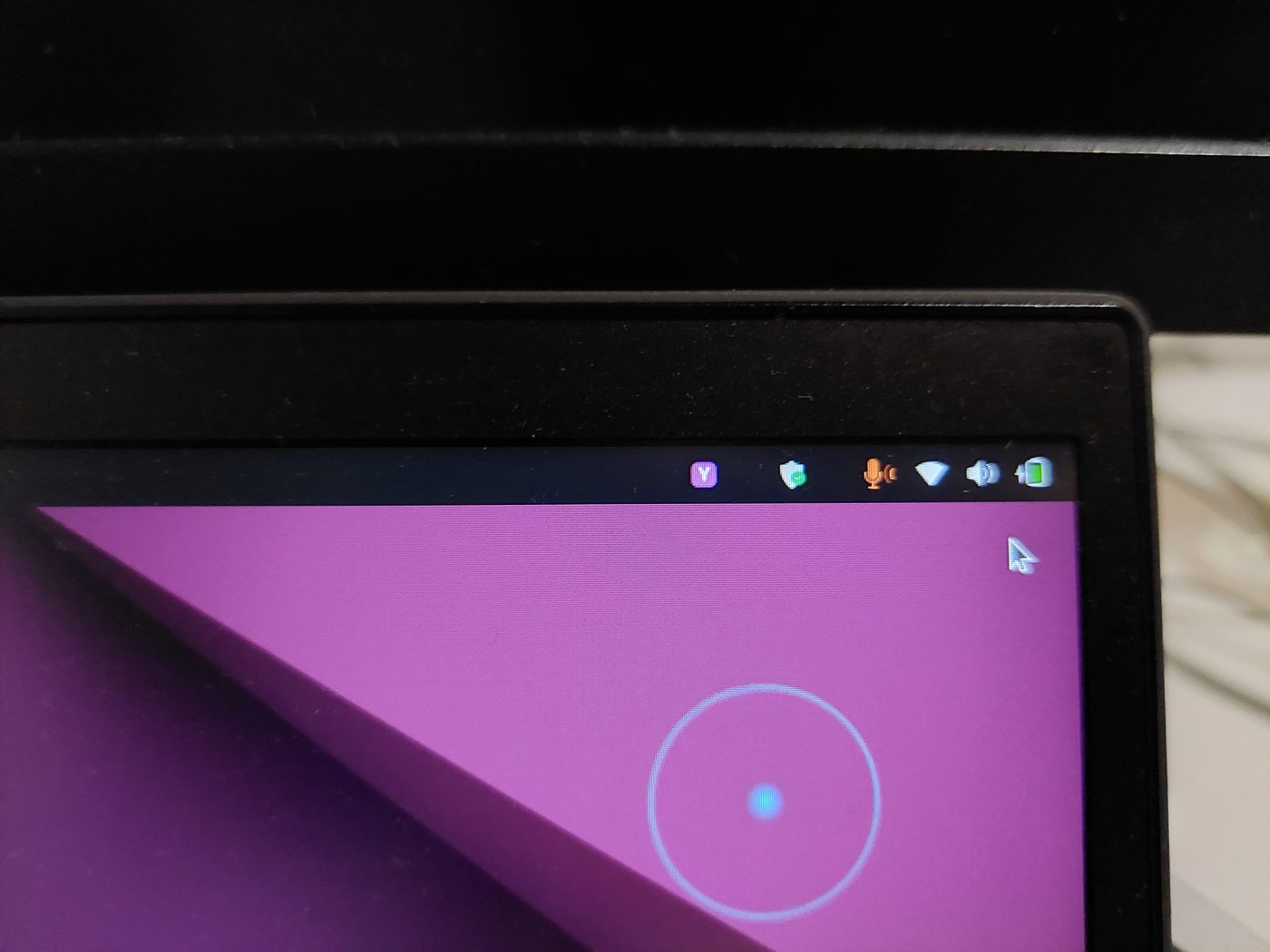
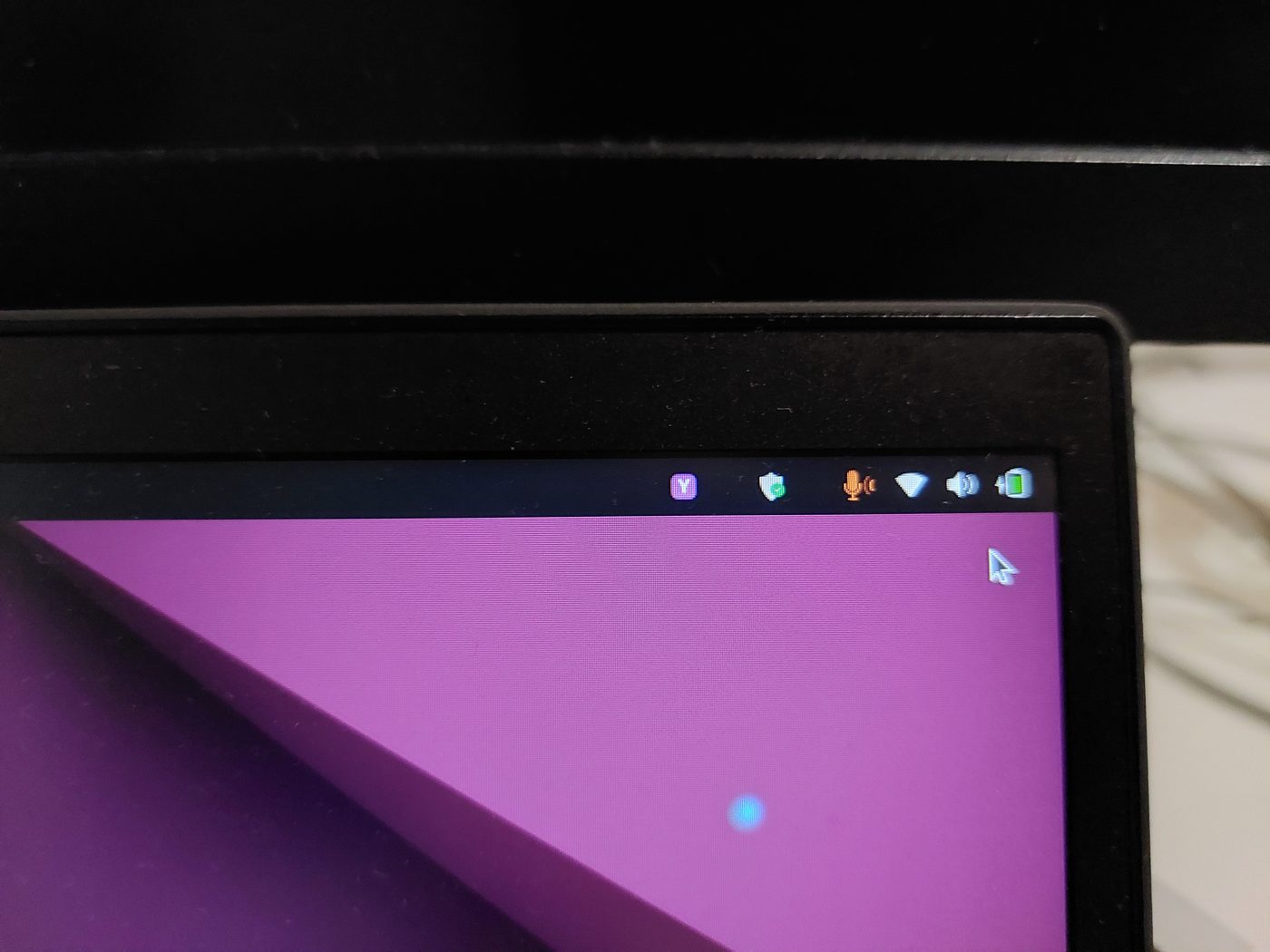
The rings grow and fade with your speech level, then disappear the moment you release the key.
---
## Turn them on
Both are opt-in surfaces you can toggle with `yazses features` (no config-file editing):
```sh
yazses features # list capabilities and their on/off state
yazses features enable tray # top-bar Y state indicator
yazses features enable overlay # sonar voice-activity rings (needs the `overlay` extra: PySide6)
yazses restart # apply
```
- The **tray** icon is on by default when a desktop is present (`[tray] enabled = true`).
- The **overlay** needs the `overlay` extra (`pipx install 'yazses[overlay]'` or `yazses features enable overlay` auto-installs it).
See the [CLI reference](cli-reference.md) and [features guide](features.md) for the full list.