Seeing YazSes work — tray icon & overlay
YazSes is hold-to-talk and mostly invisible, so it gives you two at-a-glance visual signals that tell you exactly what it's doing without switching windows:
- A top-bar tray icon — a small “Y” badge whose colour is a live state indicator.
- An optional voice-activity overlay — sonar rings near your cursor that pulse while YazSes is recording your voice.
The tray icon “Y” — a 5-colour state indicator
The badge sits in your top bar (GNOME shown here) and changes colour as YazSes moves through its states. Click it for a menu to pick/pin your mic, re-calibrate, and restart/stop the daemon.
| Colour | State | What it means | |
|---|---|---|---|
 | 🔵 Blue | Normal / idle | Daemon is up and ready. Nothing is being recorded. |
 | 🟢 Green | Dictating into text | You're holding the hotkey and speaking; the words will be typed into the focused text field. |
 | 🟡 Yellow | No text target | You're dictating but nothing editable is focused — the words are saved to the clipboard instead of being typed into the wrong place. Paste with Ctrl+V. |
 | 🟣 Purple | Command mode | You're holding the command key, so speech is parsed as a voice command (e.g. “undo that”) rather than typed. |
 | 🔴 Red | Problem | An error or a run of silent captures (e.g. the mic went silent / switched away). Open the menu or run yazses doctor. |
The badges above are rendered from the code that draws the real one — the colour from icon_spec, the mark from the shared brand renderer — rather than photographed, so they are exactly what appears in your panel without the rest of your desktop around them. Yellow and purple were previously described but never shown, which are the two you are least likely to recognise and most need to. The live badge also carries a level ring while recording (below), which is drawn as it happens and is not part of these images.
Blue — ready / idle, in a real panel

Red — a problem needs attention, in a real panel

The level ring — is the mic actually hearing me?
Every colour above says what YazSes is doing. None of them says whether your microphone is picking anything up, and that is a different question with the same appearance: a muted mic, a monitor that quietly stole capture, or a silence threshold set above your speaking voice all look exactly like 🟢 green — right up until nothing is typed.
So while you hold the key, the badge draws a live input-level ring with a small notch on it:
| What you see | What it means |
|---|---|
| Ring past the notch, bright | Your voice is above the silence gate — this will be transcribed |
| Ring short of the notch, dim | Too quiet — this burst will be discarded |
| Ring barely moving while you speak | The mic is not hearing you at all — wrong device, muted, or unplugged |
The notch is always in the same place, whatever your microphone or threshold — the ring is scaled around your configured gate, not around raw signal level. So "did it pass the notch" is the same judgement on every machine.
If the ring never reaches the notch, that is the same condition as Silent audio — discarding: run yazses mic-level --set to retune the threshold to your voice, or use the click-menu to pick a different mic.
The click-menu — mic picker and daemon controls
The badge isn't only an indicator. Clicking it opens a menu, rebuilt fresh each time, that carries the daemon's current state at the top and everything you need to fix the two things that most often go wrong — the wrong microphone, and a daemon that needs a restart.
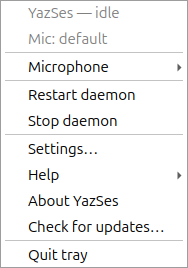
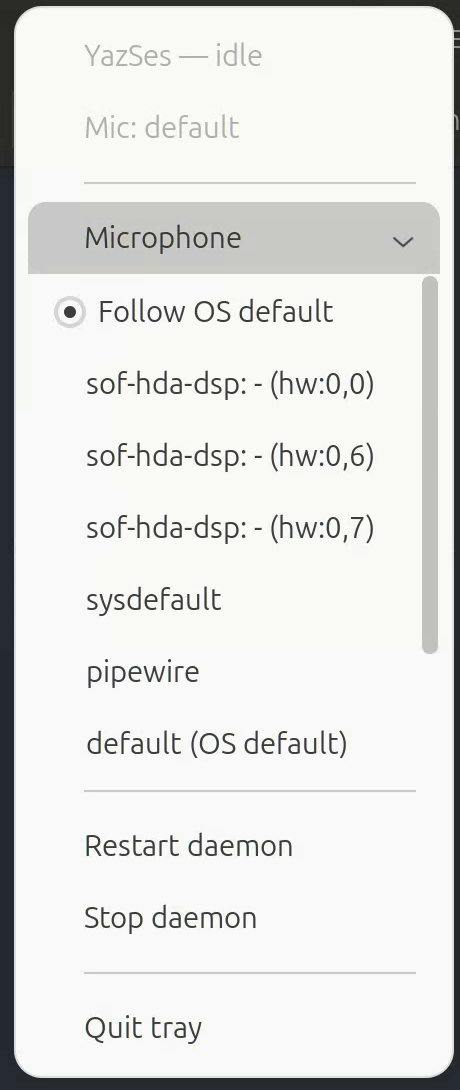
YazSes — idleandMic: default— the same state the badge colour encodes, in words.- Microphone — every input device the system reports, with the active one marked. Picking one pins it, so a USB-C monitor or a headset that appears later can't quietly steal capture.
Follow OS defaulthands control back. This takes effect live, over IPC — no restart.
- Re-calibrate — re-measures the room and writes a fitting silence threshold, for when dictation starts getting discarded as silence.
- Start meeting / Stop meeting — begin and end a Meeting Mode recording without a terminal. Meeting Mode is the one thing YazSes does that has no key to hold: it runs hands-free for the whole meeting, so the icon is the only place to start it from once the call has begun. Starting reports the meeting id; stopping reports that the transcript is being written, which continues for a while after the click.
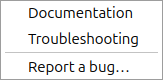
Both entries are always shown, and on Linux the one that cannot apply is greyed out with the reason given — Meeting Mode is off, a meeting is already running, still finishing the last meeting. When neither entry can do anything the reason appears as a plain line in the menu above them, not only as a hover tooltip: a tooltip is unreachable by keyboard, is never announced by a screen reader, and is not drawn at all on a desktop that renders the tray menu itself (GNOME with AppIndicator). Meeting Mode is off by default, so that is the state most people see first; turn it on in Settings… (or yazses features enable meeting) and restart. On macOS and Windows the menu is built once when the tray starts and cannot grey entries out as state changes, so both stay clickable there and YazSes answers with the same reason when a click can't apply. - Settings… — opens the graphical settings window (the same thing as yazses settings), where features, the hotkey, the microphone and the silence threshold are all editable without hand-writing TOML. - Help — a submenu with Documentation, Troubleshooting and Report a bug…, each opening the right page in your browser. No terminal needed to find the docs from the icon.
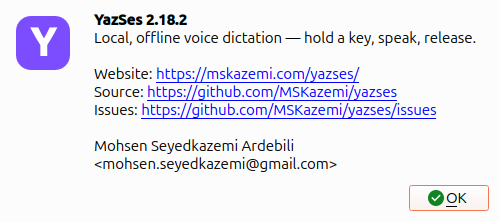
- About YazSes — the version you are actually running, the tagline, and links to the website, the source and the issue tracker. This is the number to quote in a bug report.
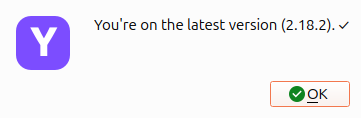
- Check for updates… — asks the source you installed from (PyPI, or your snap channel) whether there is a newer release. If there is one and it can be installed without a password, the dialog offers Install now; snap installs are shown the
sudo snap refresh yazsescommand to run in a terminal instead, because a tray click has nowhere to type a password. Either way, restart the daemon afterwards to run the new version. The check runs in the background — the menu never freezes waiting on the network.
After installing, YazSes re-reads the version on disk and only reports success if it actually moved. If it didn't, the dialog says so instead — most often because the install is pinned to an exact version (uv tool install yazses==2.19.0), which makes uv tool upgrade exit successfully while doing nothing. The fix is to reinstall unpinned, keeping your extras: uv tool install 'yazses[desktop]@latest'. Dropping the [desktop] part installs base dependencies only and removes the tray and overlay with them.
- Restart daemon / Stop daemon — and Quit tray, which closes only the icon and leaves dictation running.
The Settings…, Help, About and Check for updates… entries are in the menu on Linux, macOS and Windows — the menu means the same thing wherever you run it. (macOS and Windows show About as an alert/notification rather than a dialog, since their menu toolkits have no dialog of their own.) On Windows there is also a YazSes Settings shortcut in the Start menu, for when you haven't found the tray icon yet.
Nothing here phones home on its own: the update check runs only when you click it, and it asks for a version number and nothing else. See the privacy statement.
Here it is being driven — the menu opening, the Microphone submenu expanding, and the daemon controls underneath. (This recording predates the Help / About / Check-for-updates entries, so it stops at Settings…; everything it shows still works the same way.)
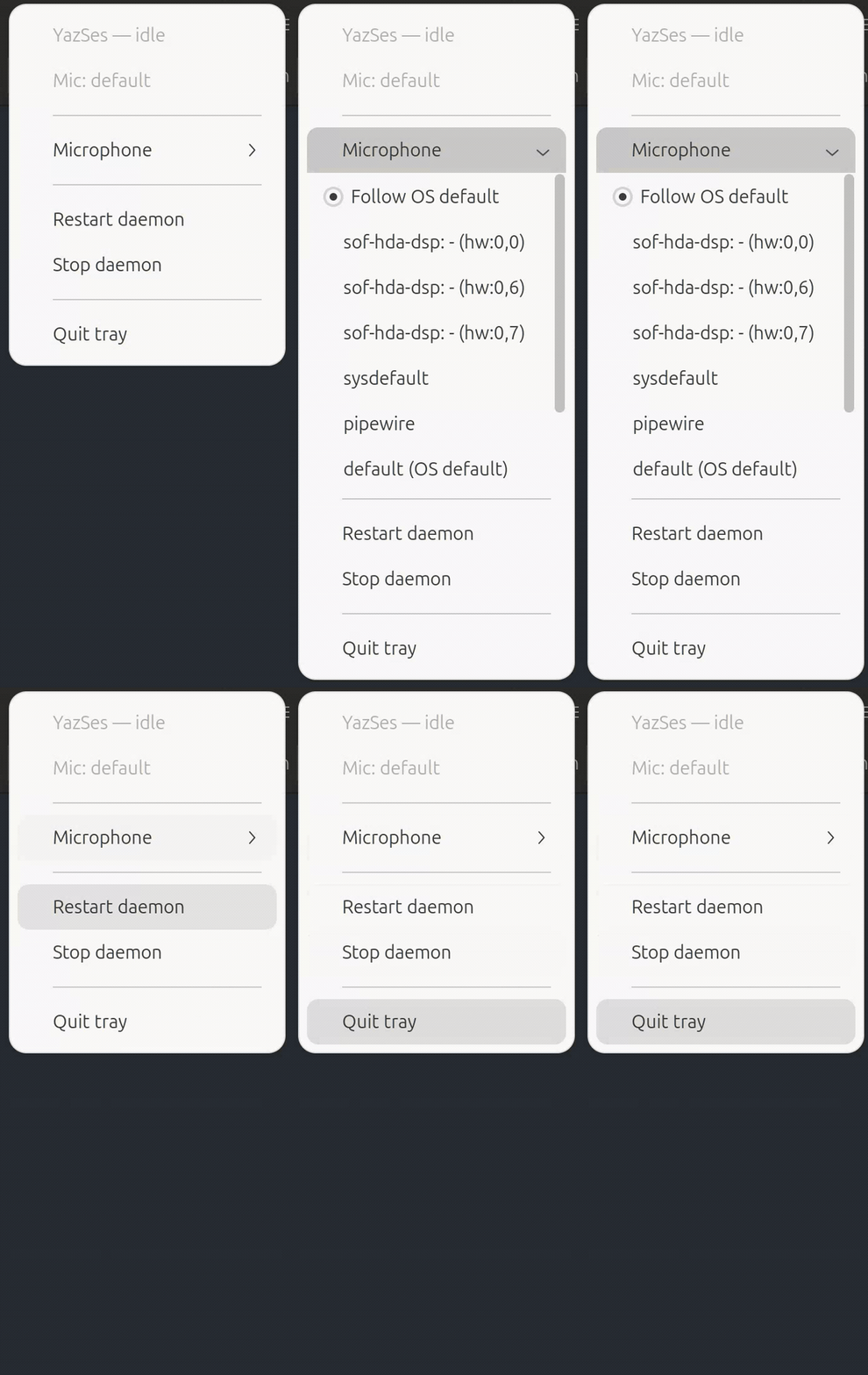
The same actions are available from the command line if you prefer it — yazses audio devices, yazses audio use <name>, yazses mic-level --set, yazses restart.
The voice-activity overlay — “YazSes is listening”
When the overlay is enabled, holding the hotkey draws expanding sonar rings near your cursor that react to your voice level, so you get instant feedback that YazSes is actually recording — no guessing whether it heard you.
Notice the tray badge colour and the overlay together tell the whole story:
Recording into text (tray 🟢 green + rings pulsing)
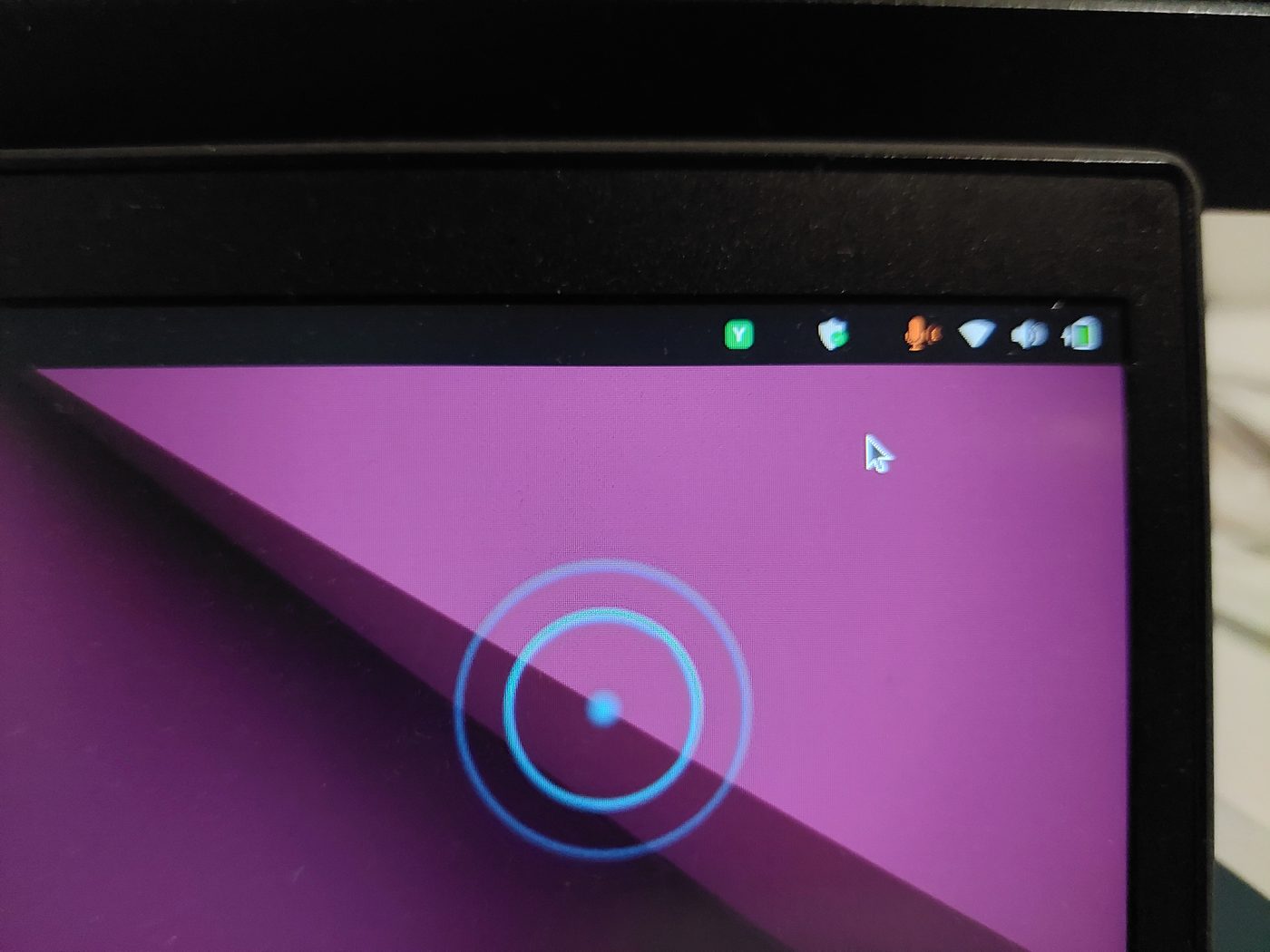
Command mode (tray 🟣 purple + rings pulsing)
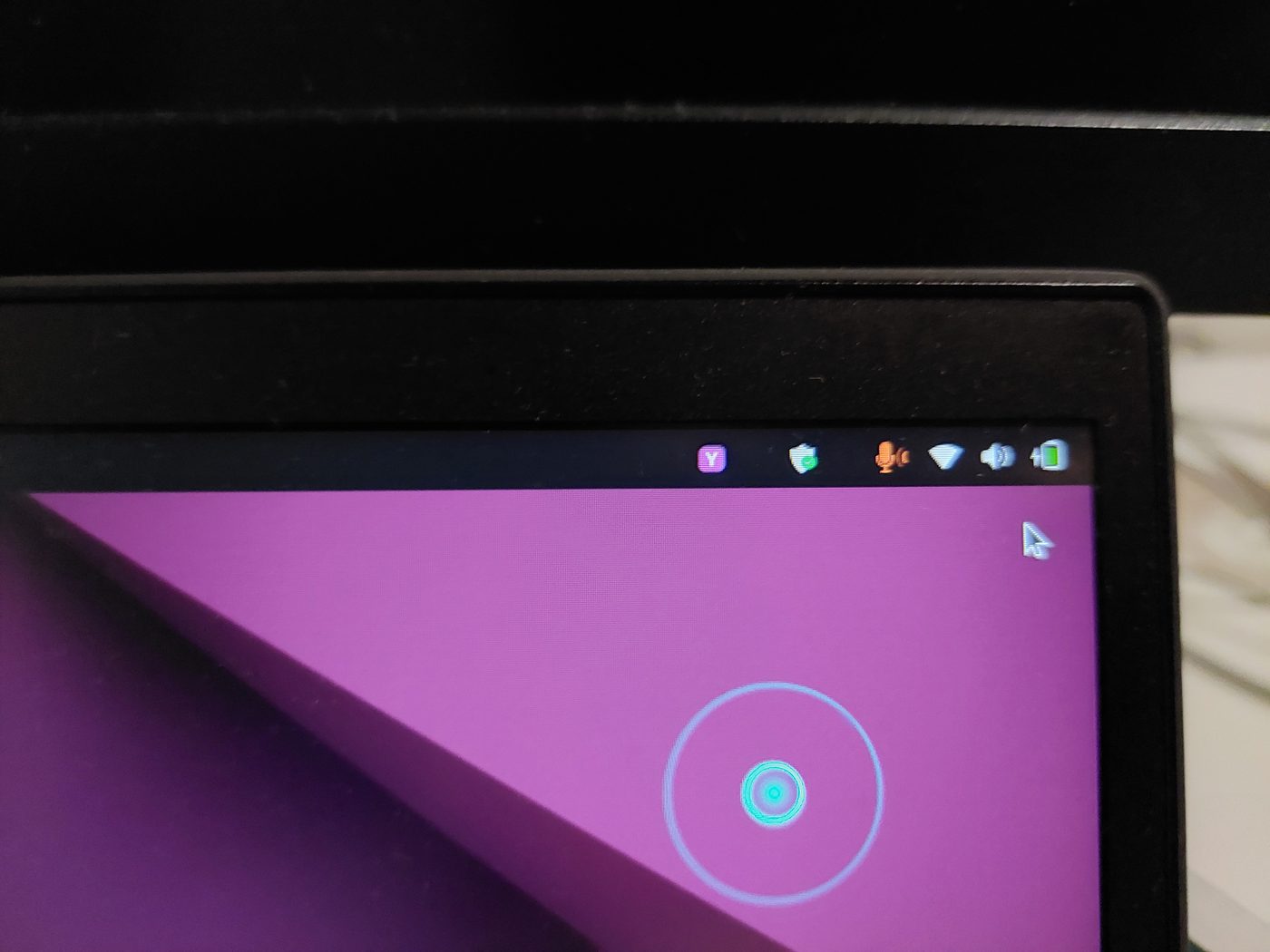
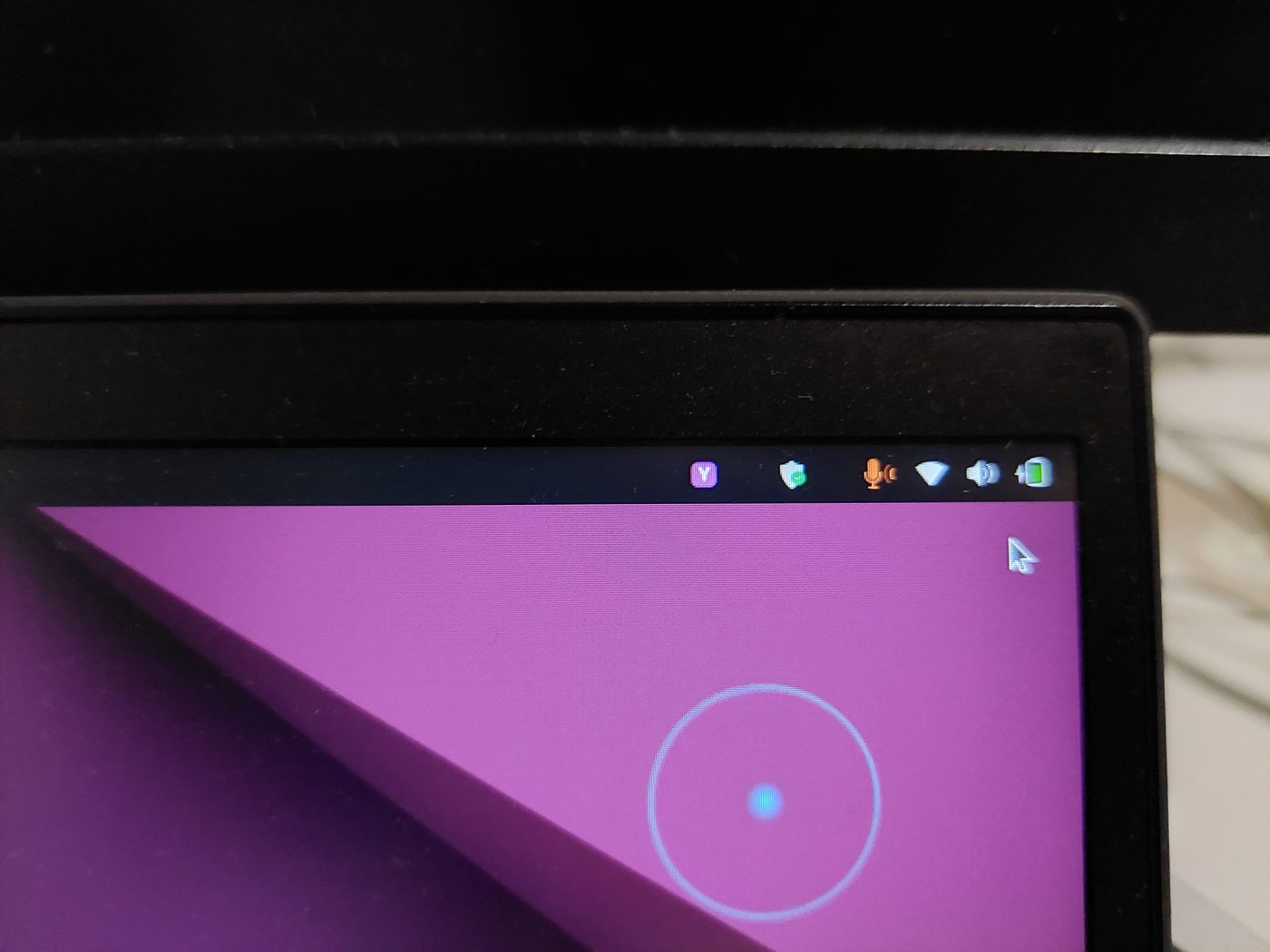
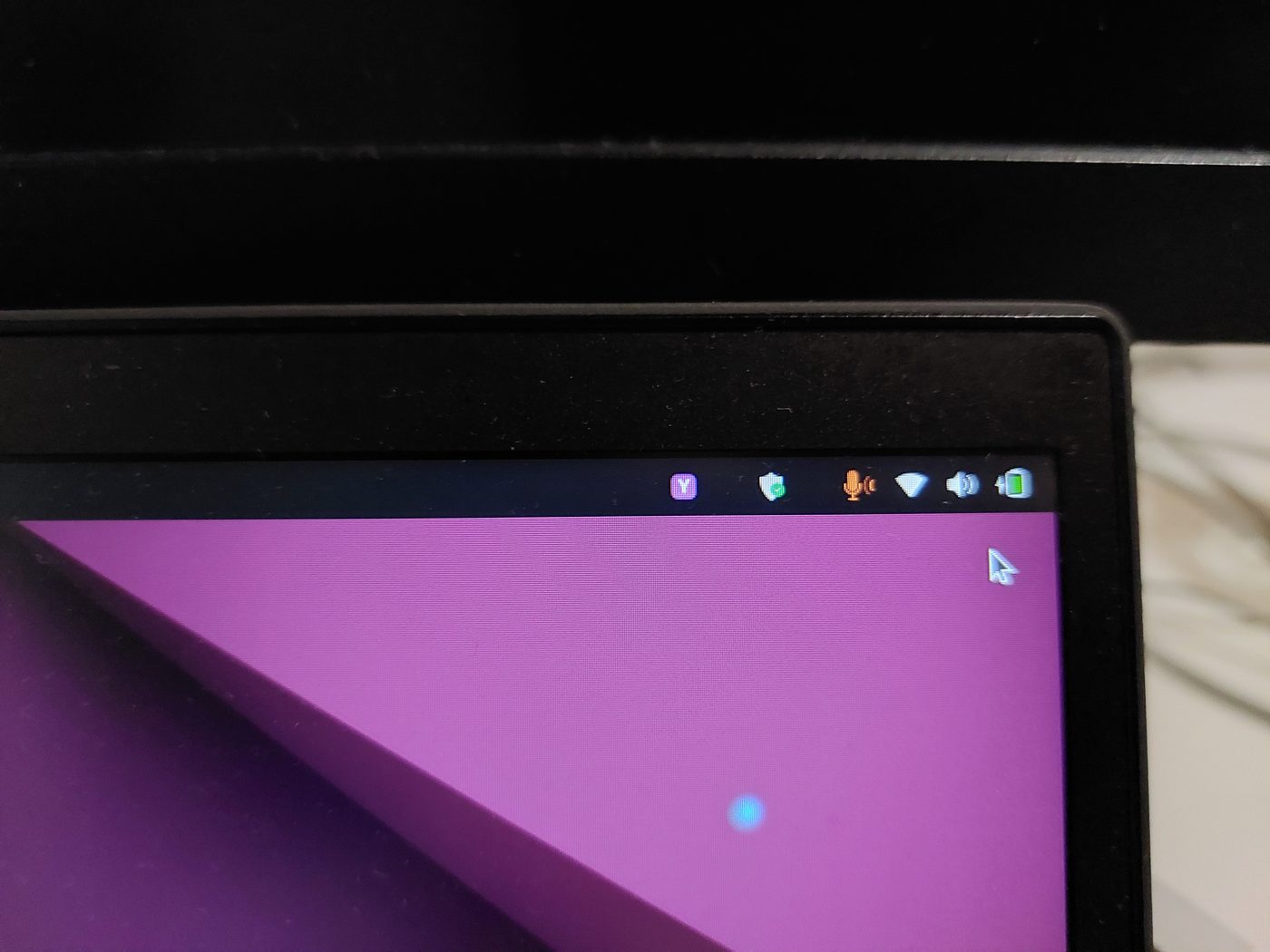
The rings grow and fade with your speech level, then disappear the moment you release the key.
If moving things on screen are a problem — reduced motion
Expanding rings travelling outward near the pointer, sixty times a second, are exactly the pattern people with vestibular disorders and motion sensitivity need software to stop doing. Your desktop already has a switch for this, and YazSes now reads it:
| Desktop | The setting it reads |
|---|---|
| GNOME | Settings → Accessibility → Reduce Animation |
| macOS | System Settings → Accessibility → Display → Reduce motion |
| Windows | Settings → Accessibility → Visual effects → Animation effects |
With reduced motion in effect the overlay keeps the ring and drops the travel: one steady circle while you hold the key, brightening in a few discrete steps as you get louder. You still see that YazSes is recording and roughly how loudly — nothing moves, and the brightness is stepped rather than continuous so it cannot flicker with microphone noise.
YazSes asks the XDG desktop portal first and falls back to GNOME's own key, so any desktop with a portal backend is covered without YazSes needing to know how that desktop stores the setting. That order also matters inside the snap: a confined process reading gsettings may be answering about the sandbox rather than about your session.
Where neither answers — a bare window manager, or a desktop with no portal — YazSes leaves the animation alone rather than guessing, and you say so yourself:
"off" forces the full animation even if your desktop asks for less.
Turn them on
Both are opt-in surfaces you can toggle with yazses features (no config-file editing):
yazses features                 # list capabilities and their on/off state
yazses features enable tray     # top-bar Y state indicator
yazses features enable overlay  # sonar voice-activity rings (needs the `overlay` extra: PySide6)
yazses restart                  # apply
- The tray icon is on by default when a desktop is present (
[tray] enabled = true). - The overlay needs the
overlayextra (pipx install 'yazses[overlay]'oryazses features enable overlayauto-installs it).
See the CLI reference and features guide for the full list.